Adrian Garcia

Adrian Garcia

Friday, April 10, 2015

Printing

From experience, printing can be a huge pain. The types of printers that you are working with are crucial to the success or failure of your printing. Here is some basic information about printers to be aware of when deciding what you need to fulfill your printing needs.


Ink Jet Printers – They spray tiny drops of ink onto the paper to create the image.  The dots are as small as 50 microns.  A human hair is about 70 microns for reference, so don’t bother looking for them.  For more information about how ink jet printers work we recommend this website: http://www.howstuffworks.com/inkjet-printer.htm   
Image result for inkjet printers
Laser Jet Printers – They use static electricity to stick plastic powder (toner) on the paper and then melt it onto the paper using a hot roller.  That’s right, laser jets don’t use ink they use toner which is a very fine plastic powder.  For more information about how these printers work I recommend this website: http://computer.howstuffworks.com/laser-printer.htm   There are color laser jet printers by the way.  They use toner that is black, cyan, magenta and yellow to create all the colors of the rainbow.
Image result for color laser printers

E-Mail

Communication is one of the key uses of technology these days. This is especially true regarding people's careers. E-mail has become an important way for employers to be in touch with their employees in order to make sure that their business stays afloat properly and that they can get their job done. Due to this, it is important that people are aware how to properly write an e-mail. There are several key rules when working with e-mail in order to stay as professional and efficient as possible. Here are a few of them:

  • Professionalism: Use language that projects a professional image to your audience.
  • Confidentiality: Be respectful of personal information and delicate information. Remember that a follow-up phone call or personal meeting is always an option.
  • Efficiency: Simple emails that get directly to the point are always more successful. Be concise and to the point.
  • Check your spelling, punctuation and grammar. It's OK to be a little informal in a email, but don't be sloppy.
  • Make sure it looks good. Use a professional font (times new roman, arial, or helvetica are probably trhe best choices). It should be easy to read your message. Don't use all capitals, symbols, abbreviations, or emoticons in formal communications.
  • Remember that email is NOT private. Digital copies of your message will exist online for a very long time and unlike an old fashioned letter, the text of your emails can always be searched for a key words or phrases. Such searches could be conducted by your employer, the email service provider you are using,or even the government.
  • Careful with tone in an email. When we communicate face-to-face 70 to 90 percent of the communication is non-verbal. Unfortunately, in an email things like sarcasm, jokes, double or hidden meanings can often be confusing. Try to avoid them.
  • Don't Forward Junk Mail. Messages that are probably fake, full of rumors, urban legends or just advertisements should just be deleted. We have a good technology tip about Zaping Email Legends (Tech Tip #143) that can help you separate fact from fiction.

Saturday, April 4, 2015

Ipad Tips

Here are some helpful tips that can make things more convenient for you if you happen to be the owner of an ipad.


  1. To create a folder all you need to do is tap and hold on an app until they all start to jiggle, then drag the app over another icon and release.Your iPad will create a folder with both the apps in. The folder will be named according to the category of the apps it contains, but you can rename it as you like.
  2. If you're carrying around sensitive data, you can now enable a feature that'll erase all the data on the device if someone inputs the incorrect passcode 10 times. Navigate to Settings > General > Passcode Lock > Erase Data.
  3. By going to Settings > Notifications, you can decide which apps can pop up alerts, which have notifications at the top of the screen, and which appear in Notification Center. This means you can make sure that noisy apps don't clog things up for you, and you notice the important things.
  4. If you're fed up of getting bugged by messages asking if you'd like to join this or that Wi- Fi network all the time then head to Settings, Wi-Fi and turn off Ask to Join Networks. You can still join any network that will have you from this same screen, it just won't bug you constantly when the opportunity arises.
  5. You can connect the iPad 2 and new iPad to your HD television using Apple's Digital AV Adapter (which connects from your 30-pin Dock adaptor to a HDMI port) or a plain old Apple VGA Adaptor. Both are available from the Apple Store. The iPad 2 and new iPad support video mirroring, so your entire Home screen will appear on the TV, not just the videos you play.
Image result for ipad

Friday, April 3, 2015

Flash Drives

Here are few interesting and fun uses for flash drives that one would not automatically think of:


  1. You can use it as a key. You can make it so that you computer is locked when you do not have your flash drive plugged in. This will be very helpful for keeping your information private.
  2. You can use your flash drive to carry apps and games, such as chrome, portable without having to have your computer with you.
  3. Use it to keep your files and documents in a safe and secure place.
  4. You can actually use it to install windows on a Mac-book.
  5. You can use to store music on it and have a mix-tape for the digital age if you will.
  6. You can use it to store more of your pc's memory
  7. You can also use it to destroy data.
Image result for flash drives

Thursday, April 2, 2015

Getting Rid of Viruses and Malware

Here are 3 tips to help if you are having trouble with viruses or other type of malware on your computer:

Method 1 – Perform A System Restore

System restores are a good way to get rid of light malware and spyware programs. They require no downloading of any software and can be performed directly by Windows.
System restores work best if you catch the intrusion right away. But, you do not want to do a system restore if you believe that you have had malware, spyware, or viruses on your computer for any significant amount of time.
This could cause you to lose files, applications, or data. To do a system restore in Windows, navigate to the control panel using the path Start > Control Panel. Click the Recovery icon located within the Control Panel and hit the Open System Restore button on the next screen.
The rest of the process is very straightforward as the Windows Wizard will guide your through it.
system restore

Method 2 – Scans

There are thousands of different programs out there in the spyware/virus removal category, many of which are free. The thing to remember is that different virus removal programs will bring different results; and none of them are 100% completely accurate.
For example, you can scan your computer with one virus removal program, remove the viruses… then turn around a scan your computer with a different program, which will catch even more viruses that the first program didn’t pick up.
However, you do not want to stack tons of virus removal programs on top of each other. Doing so can actually throw off effectiveness. One good antivirus scanner should be enough.
We recommend Microsoft Security Essentials. Aside from the virus scanner, it is also wise to use a spyware and malware scanner. Two great choices that you can check out are Adaware and Spybot Search and Destroy.
anti virus microsoft

Method 3 – Clean Install

A clean install is not the most fun thing to do. However, a clean install is the one guaranteed way to get rid of viruses, spyware, and malware. It’s simple… when you do a clean install, you are deleting everything on your hard drive. Thus, no more viruses.
Most of the time, viruses will not infect items like pictures, text documents, videos, or MP3 files. If step 2 (scan), is not working for you, more than likely the virus is in your computer’s registry. This is good because you can backup all of your pictures, documents, etc… before doing the clean install. That way you will not lose anything important.
clean install win xp
The most common way to backup files is by using an external hard drive, flash drive, or burning DVDs. Doing a clean install is not at all as hard as it may seem, it’s just time consuming because you have to wait for Windows to copy itself to your hard drive. You can read our previous article on how to perform a clean install. Enjoy!

Monday, March 30, 2015

LCD TV

If you are the owner of an lcd tv, here are some quick tips that can enhance the viewing experience:

ENHANCE THE SOUND

Adding upgraded sound to your LCD TV enhances your overall viewing experience. Not only will movies and TV sound more lifelike, but you'll also be able to increase the maximum volume beyond what often under-powered TV speakers provide. Upgrading the sound system for your LCD TV doesn't have to be expensive, and doesn't require complicated speaker setups. In fact, you can upgrade the sound with a simple stereo receiver and two speakers. Find the audio output of your TV and use an analog red/white audio cable to connect it to the input of your stereo receiver. Tune your receiver to this input to process all TV sound.
Inexpensive "home theater in a box" setups are also available. While these don't offer the same level of sound quality as professional home theaters, they offer a reasonable option if you want home theater sound at a low price.

REDUCE SIDE VIEWING

LCD TVs offer good picture quality, but viewing from a side angle is a weakness of the technology, regardless of whether the TV is standard or LED-backlit. To minimize this issue, ensure that seating is primarily facing the TV. Don't place seats to the extreme sides, as this viewing angle will have a poor viewing experience.

USE THE LATEST TECHNOLOGY

LCD televisions come with the highest-quality inputs, such as component video and High-Definition Multimedia Interface. If you are not using these or use lower-quality inputs (like composite or S-video) instead, you're not getting the best picture quality from your TV. Whenever possible, use HDMI inputs and outputs. They offer the best digital video and sound and are impervious to electronic interference that occurs in older, analog cables. Use component video cables and digital sound cables, like coaxial and SPDIF, as an alternate HDMI. Often, cable companies use cable boxes with high-quality outputs -- consult your cable company to find out how to obtain one.
In addition, get the most out of your LCD by watching Blu-ray DVDs. This DVD technology offers increased resolution over traditional DVDs, and takes full advantage of the LCD's display capabilities. You'll need a Blu-ray DVD player, but the image quality is impressive and helps justify the cost of a new player.
Image result for lcd tvs

Restarting Windows in Safe Mode

If you are having trouble booting up your windows in normally, you can enter into safe mode. Safe Mode allows you to enter into windows to help fix problems that are preventing the computer from running normally. Here are the steps required to restarting windows in safe mode:

Safe Mode in Windows XP/Vista/7

To get into the Safe Mode in Windows XP, Vista or 7, re-boot the computer and then press and hold the “F8 Key” which will then bring up the “Windows Advanced Options Menu“. Scroll down to “Safe Mode” using the arrow keys and press Enter.
windows safe mode
Note that sometimes if you press and hold the F8 key, some computers will start to beep annoyingly, so in that case, simply hold the F8 key continuously during the boot up period.
If you are still not able to get into Safe Mode, you can try to kill the power on the computer to turn it off and then turn it back on. If Windows shuts down unexpectedly, it will usually bring up the Advanced Boot Options menu automatically. If that doesn’t work, you can read my previous post on getting into Safe Mode if F8 is not working. This method, however, requires you to be able to log into Windows in order to tell it to boot into safe mode on the next restart.

Safe Mode in Windows 8/10

In Windows 8 and Windows 10, the process of getting into safe mode is completely different. The F8 key no longer works because the boot process is too fast.
The only way to get into safe mode is to boot into System Recovery Options, which is where you can perform various troubleshooting tasks including starting in safe mode.
I’ve already written about how to boot to the Windows 8 System Recovery Options screen, but the process is slightly different for Windows 10, so I’ll mention it here. In Windows 10, there are two ways to get to therecovery options screen. Firstly, you can click on the new Start button, which is back again in a different form, and then hold down the SHIFT key and click on the power button.
windows 10 safe mode
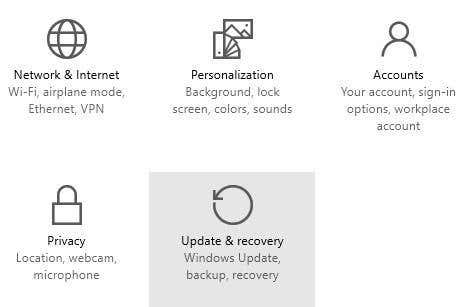
While still holding down the SHIFT key, click on Restart. The other way is the same as Windows 8, but it just looks a bit different. Click on the Start button and then click on Settings as shown above.
This will bring up a new Settings dialog that basically replaces the PC Settings dialog in Windows 8. Here you will click on Update & recovery.
update and recovery
Now you’ll see the options to refresh your PC, reinstall everything or restart in advanced startup mode.
advanced startup
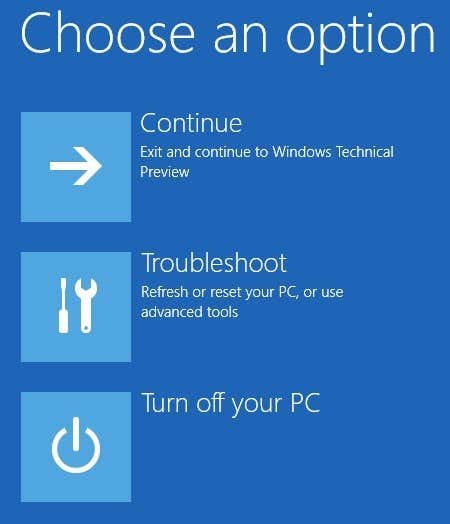
At this point, the process to get into Safe Mode in Windows 8 or Windows 10 is the same. You’ll now see three options: ContinueTroubleshoot and Turn off your PC.
recovery options windows
Now just follow the instructions on my article on booting to safe mode in Windows 8. You basically click onTroubleshoot and go from there. Windows 8 and Windows 10 are also a lot smarter than previous versions and will normally bring up the recovery options automatically if a problem is detected while booting.